虚拟机通过代理上网
方法一:关闭防火墙:
Win+R :输入 control
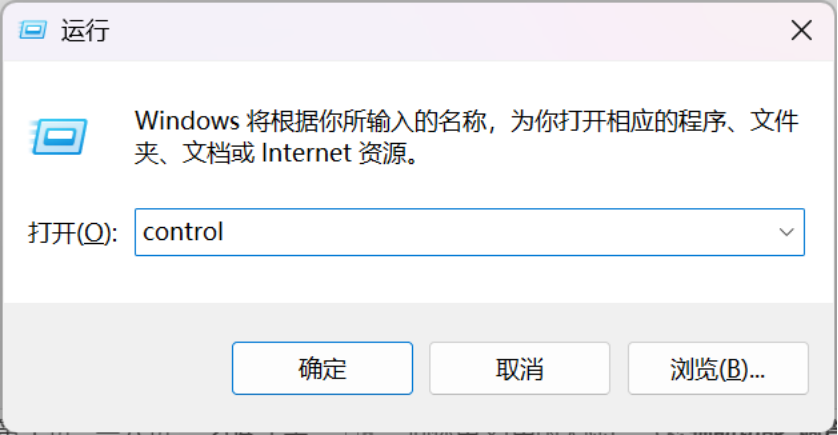
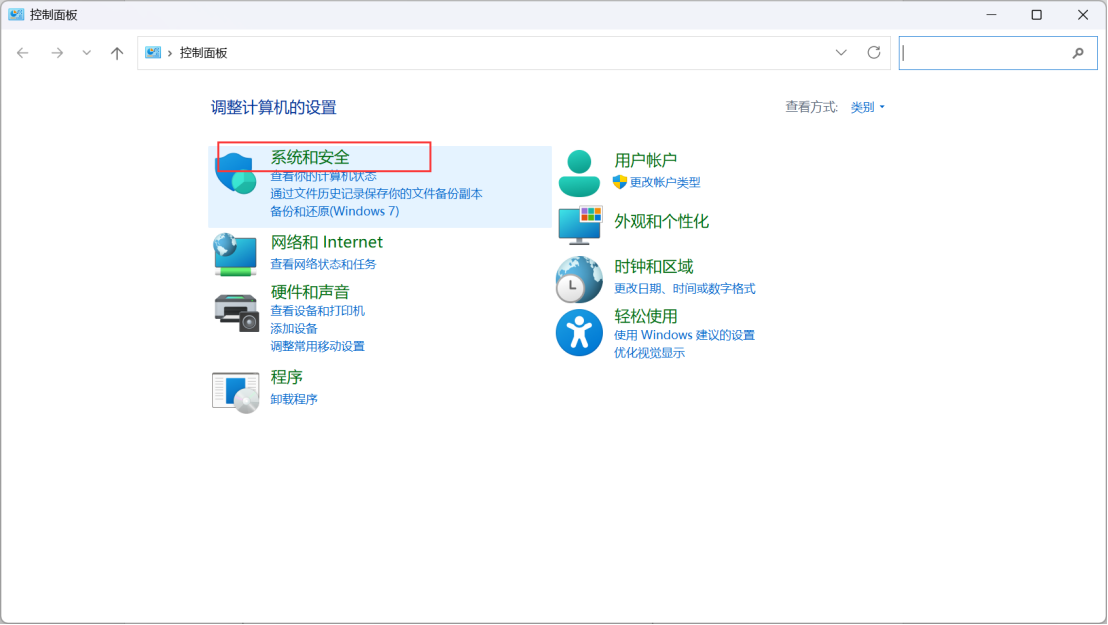
选择系统与安全
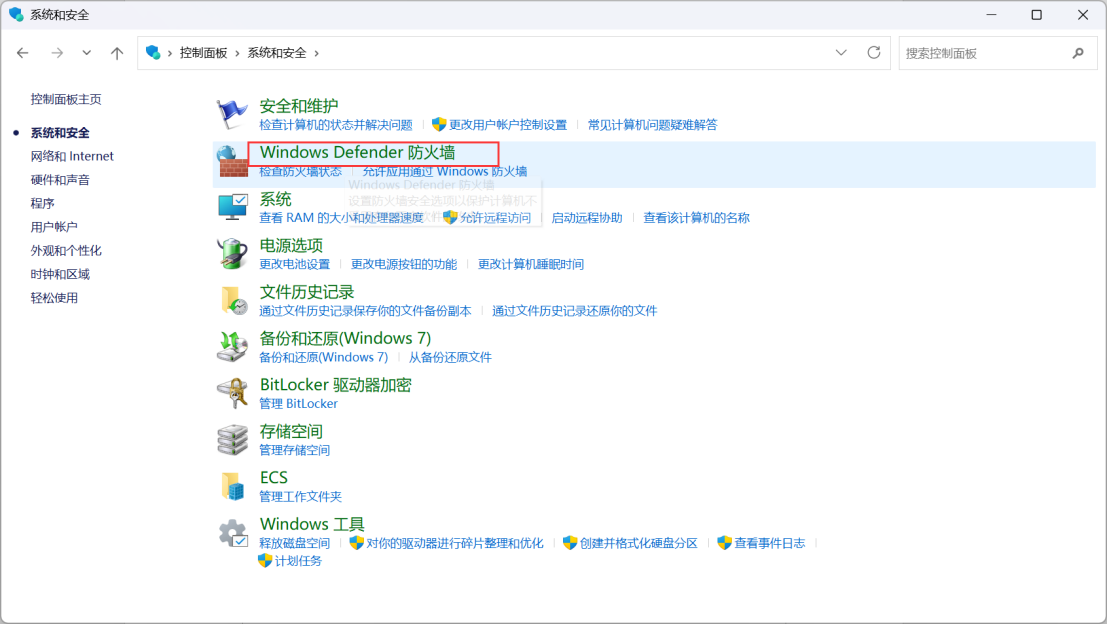
选择防火墙
选择启动或关闭防火墙
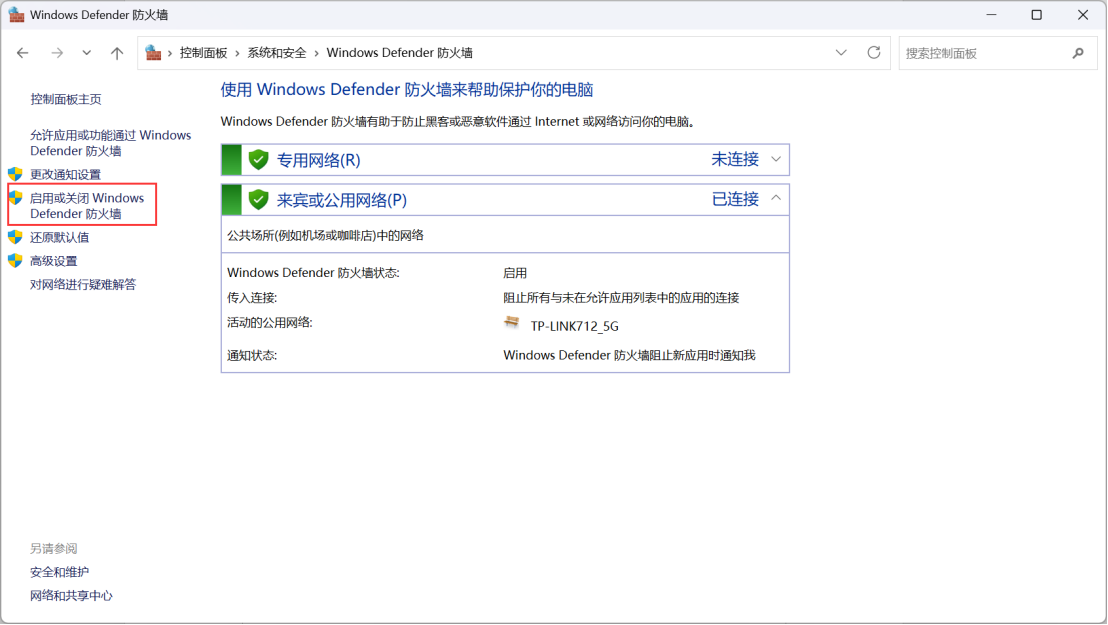
选择关闭
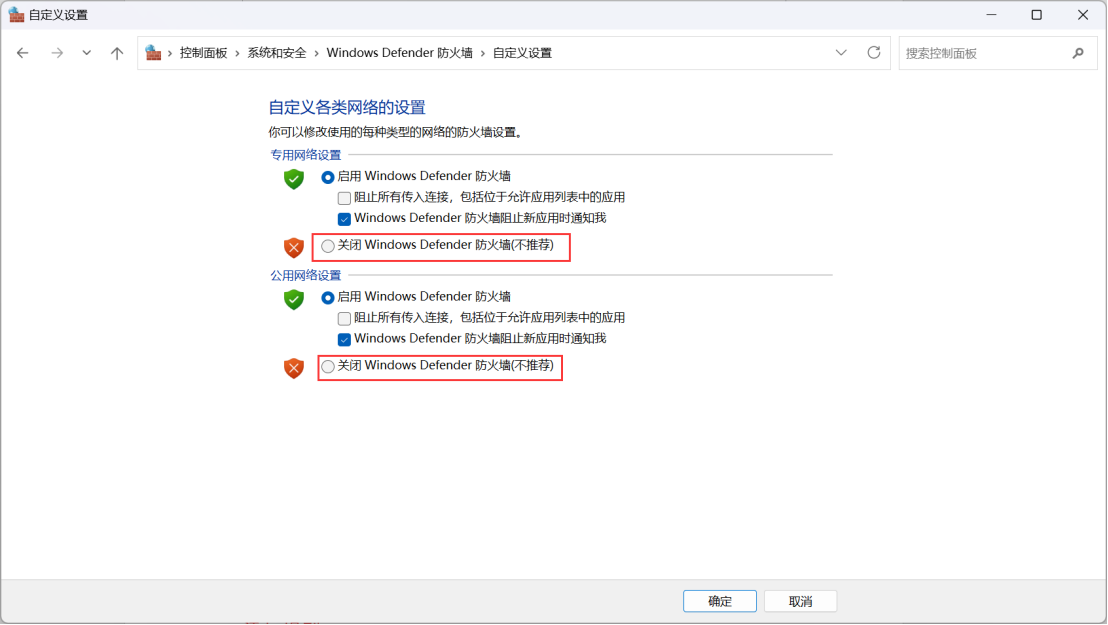
在虚拟机中ping或 Telnet自己宿主机虚拟网卡地址,可以ping通及Telnet
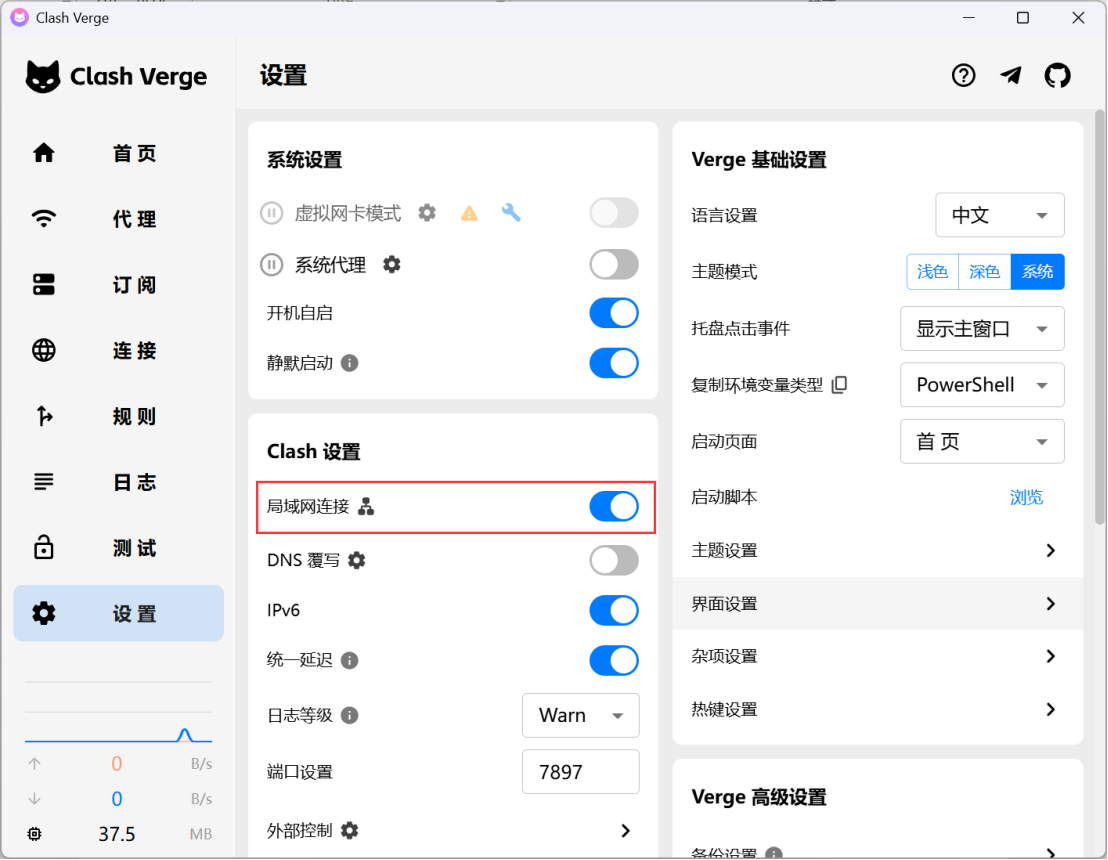
打开clash ,进入设置,开启局域网连接
进入虚拟机操作系统(Linux)
配置如下: 替换为自己宿主机虚拟网卡IP地址(例:192.168.11.31),修改端口为代理监听端口
永久设置:
echo 'export HTTP_PROXY=http://192.168.110.188:7897' >> /etc/profile
echo 'export HTTPS_PROXY=http://192.168.110.188:7897' >> /etc/profile
echo 'export NO_PROXY=localhost,127.0.0.1,::1,.local,.cluster.local,10.0.0.0/8,192.168.0.0/16,lb.heimak8s.com,harbor.lanqicheng.top' >> /etc/profile
source /etc/profile
设置成功
docker拉取镜像代理设置
mkdir -p /etc/systemd/system/docker.service.d
vim /etc/systemd/system/docker.service.d/http-proxy.conf
[Service]
Environment="HTTP_PROXY=http://192.168.110.47:7897"
Environment="HTTPS_PROXY=http://192.168.110.47:7897"
Environment="NO_PROXY=localhost,127.0.0.1,::1,10.0.0.0/8,192.168.0.0/16,.cluster.local"
systemctl daemon-reload
systemctl restart docker
containerd拉取镜像代理设置
mkdir -p /etc/systemd/system/containerd.service.d
vim /etc/systemd/system/containerd.service.d/http-proxy.conf
[Service]
Environment="HTTP_PROXY=http://192.168.110.188:7897"
Environment="HTTPS_PROXY=http://192.168.110.188:7897"
Environment="NO_PROXY=localhost,127.0.0.1,::1,10.0.0.0/8,192.168.0.0/16,172.16.0.0/12,.cluster.local,harbor.lanqicheng.top"
systemctl daemon-reexec
systemctl daemon-reload
systemctl restart containerd
同步说明
本文由飞书云文档同步生成。涉及命令、SQL、配置示例时,请以飞书源文档和实际环境执行结果为准。